Sometimes it is easier to point than to describe. "I like the calm, airy look of that clinic's site" says more than a paragraph about colours and spacing. And if you already have a website, you probably do not want to retype your services, opening hours and contact details.
Buildan.app handles both. When your description mentions a website, the AI works out what each address is for:
- a reference: a site you want yours to look or feel like, used for style only
- your own site: your current website, which is read so your real content can come over
This tutorial shows where to write those addresses, what happens during the build, how to do the same thing in the AI editor, and what Buildan.app will never copy.
What you need
- A Buildan.app account on any plan, with AI credits. Looking at websites and searching the web use a few extra credits on top of the generation itself.
- The full address of each site, for example
https://www.example.com. The site must be public: private addresses and pages behind a login cannot be reached.
Mention the sites in your description
Step 1: Write the addresses into your description
On Create a new site, choose Describe it and write your description as usual. The hint under the box says it: mention a site to use as a reference, or your current website to bring your content over.
Say clearly which is which. Words around each address tell the AI what it is for:
- "Our current website is ..." or "redesign our site ..." means it is your own site.
- "I like the look of ...", "similar to ..." or "in the style of ..." means it is a reference.
Here is the description from the screenshot, for a family dental clinic. The addresses in this tutorial are examples:
Step 2: Choose a style, or leave it to the AI
You can still pick a style from the style library below the description. If you do, the AI starts from that style and blends in ideas from the reference you named. If you leave Let AI choose selected, your reference leads, alongside well designed sites from your industry that the AI looks at for craft and layout ideas.
Then click Generate site.
Step 3: Follow what happens during the build
While your site is being built, the line under the progress list tells you what is going on in plain words. With websites in your description you will see steps such as:
- Looking at the site you mentioned, with the site's address, or Looking at the sites you mentioned for several
- Searching the web, when your description asked for information from the web, for example "look up our business online"
For your own site, Buildan.app reads the page you named plus up to three more pages it links to, such as about, services and contact. It picks up real facts like your services, opening hours, address, phone numbers, email addresses, team names and social links, and those facts count as yours. Images from your site are copied into your site's asset library and used for the story, gallery and product photos, and the progress line tells you how many were added. Testimonials on your own site are kept with the page they came from.
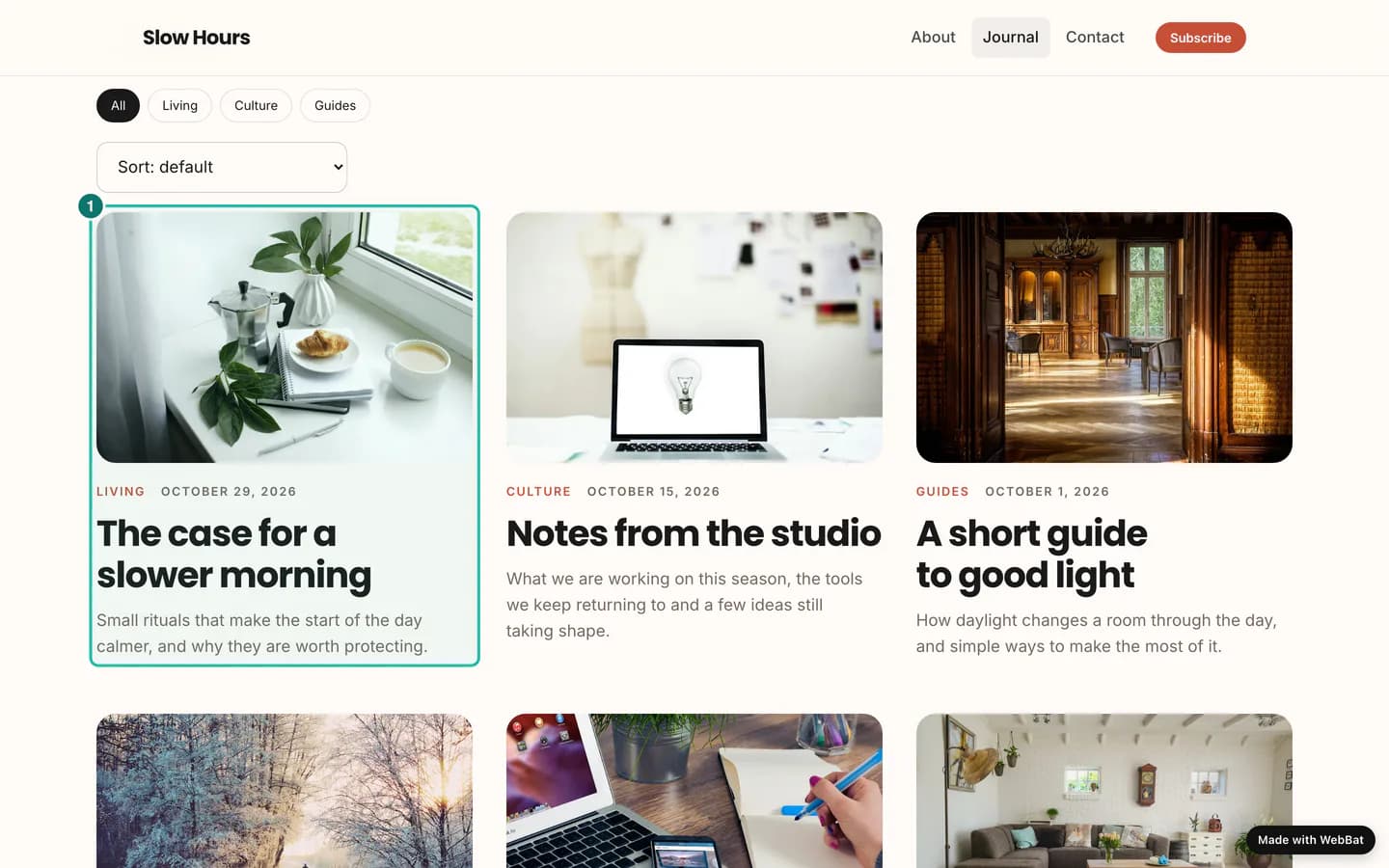
For a reference, Buildan.app takes a screenshot of the first screen of the site and uses it for style only: colours, type, layout and mood. The screenshot is held in memory while your site is built and is never stored or shown to anyone.
Step 4: Check the Sources and anything found online
When a generation used the web, the build does not jump straight into the editor. It stops on a short result screen with a Sources list linking to every site that was used, and an Open the editor button.
If the AI found facts about your business on other websites, such as a directory listing, they appear under Found online, please confirm, each with a link to its source. These facts go into your site only as sample content, marked so you check them before they go live. Reviews from other sites are never copied.
No reference? Use the style library
Step 5: Search the style library instead
If you do not have a site in mind, the style library on the same page is the quickest way to describe a look. Search for a feeling such as "calm" and filter by your industry. Every style card shows its colours and its heading and body fonts.
Do the same in the AI editor
Step 6: Ask the AI editor to look at a website
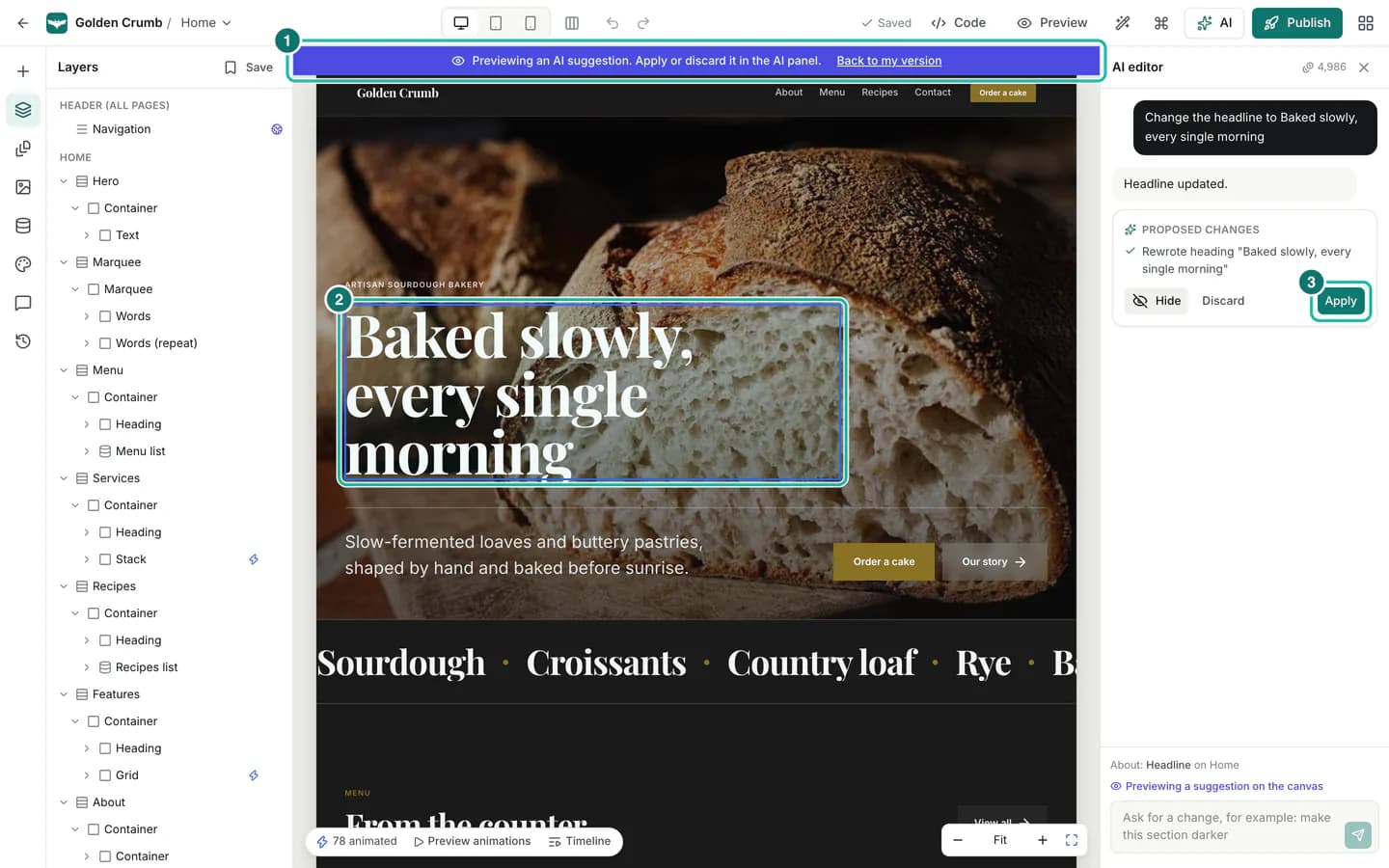
The AI editor can look at a site you mention while you work. Select the part of the page you want to change, open the AI editor with AI or ⌘J, and name the site in your request, for example Make the hero feel like followed by the address.
While it works, the panel shows Looking at followed by the site's address. The AI gets a short style summary of the site (colours, type, layout and mood) and an outline of its headings, then proposes changes as usual: you preview them and apply or discard them, as in Edit your site with AI. The sites it looked at are listed under the reply as Sources.
Two rules keep this safe: the AI can only visit sites you mentioned in that message, and it never copies a site's text, logo or name.
You can ask for web information the same way, for example "look up the latest trends for family dental clinics". The AI searches the web, shows Searching the web while it works, and lists its sources. Facts about your business from other sites are treated as unconfirmed placeholders that you are asked to check.
Step 7: Not quite there? Describe the look in words
If the first result is not what you hoped for, click the magic wand button (Try a new design) in the top bar, choose Start over, and edit the Brief. Starting over writes new pages from the words in the brief and does not visit websites, so describe the look you liked in words: calm, airy, soft blue accents, plenty of white space.
To use a website again, create a new site with its address in the description, or name it in the AI editor as shown above. Either way, your current design stays in version history, so you can always go back.
On a phone
Step 8: Paste addresses from your phone
The new site page works on a phone too. Copy the address from your browser, paste it into the description, and say whether it is your site or one you like.
Tips and pitfalls
- Use the full address.
https://www.example.comis always recognised. A bare name like "the bakery down the road" is not a website address. - Say which site is yours. "Our current website is ..." brings content over; "I like the look of ..." borrows style only. If the wording is unclear, the AI makes its best guess.
- Some sites cannot be reached. Sites that are private, very slow, or block visitors may be skipped. The build carries on without them; nothing fails because a site could not be read.
- Inspiration, not imitation. A reference shapes the feel of your site. Your words, your name and your logo stay your own, and nothing from the reference is copied.
- Your own content is yours to edit. Everything brought over from your current site is editable like any other content. Check it and tidy it up in the editor.
- Confirm facts found online. Anything marked as found online stays sample content until you check it.
Summary
Mention a website in your description and Buildan.app knows what to do with it: a site you like becomes style inspiration, and your current site becomes the source of your real content, images and facts. The build shows what it looked at, lists its sources, and marks anything found elsewhere for you to confirm. You can do the same later in the AI editor, or describe the look in words when you start over with Try a new design.